Best AI Tools for Work in 2026: 15 Tools That Actually Save Time
If you spend part of your workday writing emails, searching through documents, sitting in meetings, preparing presentations, updating spreadsheets, or moving information between apps, AI can probably remove some of that work.
The problem is choosing the right tool.
There are now hundreds of AI tools for work, and many of them overlap. You don’t need 15 subscriptions. You need a small set of tools that fit the way you actually work.
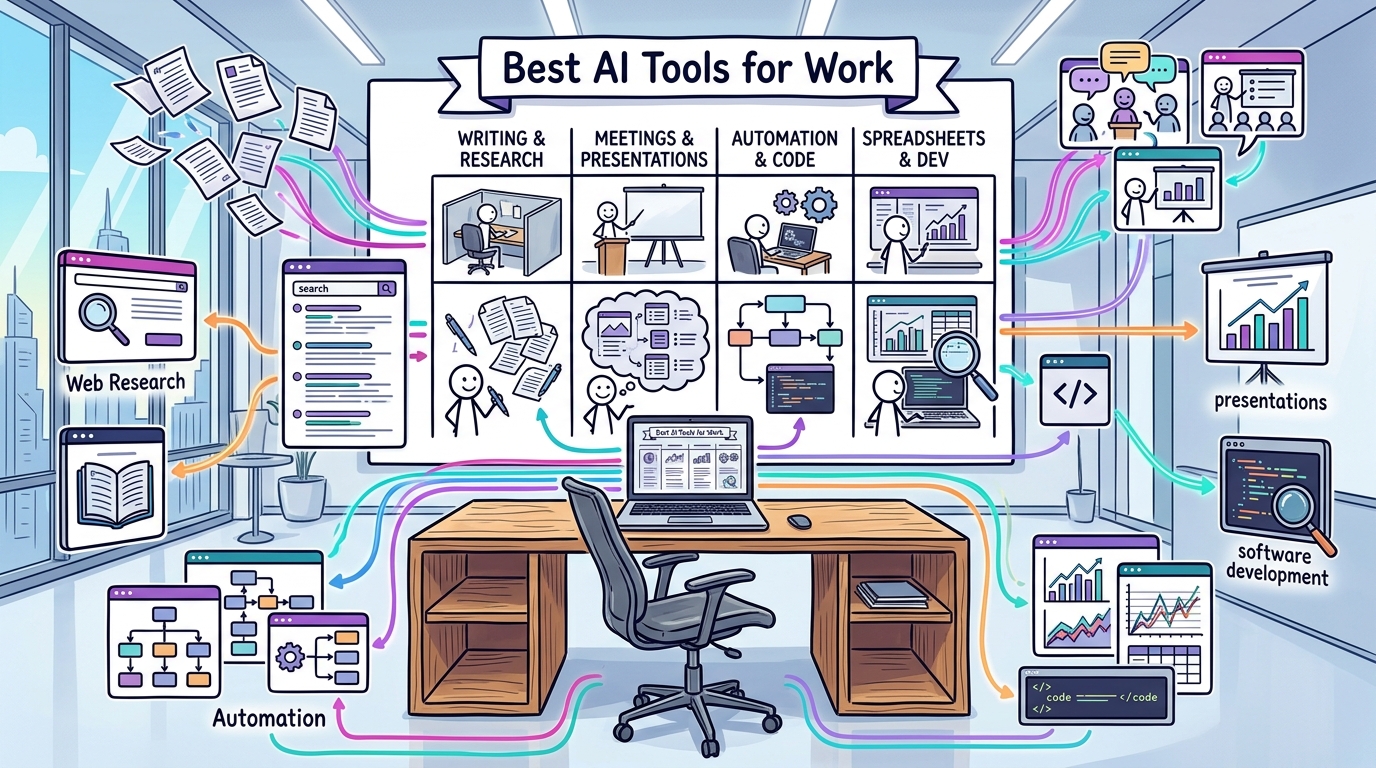
I’ve grouped the best AI tools for work in 2026 by the problems they solve, including writing, research, meetings, presentations, automation, productivity, and coding.
Quick Comparison: Best AI Tools for Work
| AI Tool | Best For | Free Option | Main Strength |
|---|---|---|---|
| ChatGPT | General work | Yes | Versatility |
| Claude | Writing & documents | Yes | Long-form work |
| Gemini | Google Workspace | Yes | Google integration |
| Perplexity | Research | Yes | Web research |
| NotebookLM | Your own documents | Yes | Source-based answers |
| Microsoft Copilot | Microsoft 365 | Depends on plan | Office integration |
| Notion AI | Notes & knowledge | Limited | Workspace productivity |
| Fireflies.ai | Meeting notes | Yes | Meeting automation |
| Otter.ai | Transcription | Yes | Meeting transcription |
| Canva | Visual content | Yes | Easy design |
| Gamma | Presentations | Yes | Fast slide creation |
| Zapier | Automation | Yes | Connecting apps |
| Make | Advanced automation | Yes | Flexible workflows |
| Grammarly | Writing | Yes | Editing & clarity |
| Cursor | Coding | Yes | AI-assisted development |
The best choice depends on what you do all day. A developer has different needs from a sales manager, project manager, teacher, researcher, or business owner.

1. ChatGPT — Best All-Round AI Tool for Work
ChatGPT is probably the easiest place to start if you want one AI tool that can handle many different types of work.
You can use it to draft emails, rewrite documents, summarize information, brainstorm ideas, analyze data, create formulas, prepare meeting agendas, explain technical topics, and help with research.
The biggest advantage is flexibility.
For example, instead of asking:
“Write an email.”
You can give it the situation, your original message, the relationship with the recipient, and the result you want.
That usually produces something much more useful.
Best uses
- Writing and rewriting
- Brainstorming
- Document analysis
- Data analysis
- Research assistance
- Creating reports
- Planning projects
- Creating presentations
- Explaining technical concepts
- Coding assistance
Best for
People who want one general-purpose AI assistant rather than a collection of specialized tools.
2. Claude — Best AI Tool for Long Documents and Careful Writing
Claude is particularly useful when your work involves long documents or writing that needs a more thoughtful tone.
You can give it policies, reports, requirements, proposals, specifications, meeting notes, or other large amounts of text and ask it to analyze or reorganize the information.
It is also useful for editing.
For example, instead of asking Claude to write a proposal from scratch, you can give it your rough draft and ask it to identify unclear sections, remove repetition, and make the language easier to understand.
Best uses
- Long documents
- Business writing
- Requirements analysis
- Summarizing reports
- Editing
- Brainstorming
- Technical documentation
- Reviewing large amounts of text
Best for
Professionals who spend a lot of time reading, writing, or analyzing documents.
3. Gemini — Best AI Tool for People Using Google Workspace
If most of your work happens inside Google’s ecosystem, Gemini becomes more interesting.
Its value isn’t simply the chatbot itself. The bigger advantage is its connection with Google’s productivity environment.
People already using Gmail, Google Docs, Google Sheets, Google Drive, and other Google services may find an integrated AI assistant more useful than a standalone chatbot.
Best uses
- Gmail assistance
- Google Docs
- Google Sheets
- Summarization
- Brainstorming
- Research
- Working with Google Workspace
Best for
Teams and individuals who already live inside Google Workspace.
4. Perplexity — Best AI Tool for Research
Traditional search gives you a list of websites. Perplexity is designed around answering questions and showing sources alongside the answer.
That makes it useful when you need to get through a research task quickly.
For example, you could ask:
“Compare the latest project management software for a 20-person software team.”
Instead of opening dozens of pages yourself, you can use an AI research tool to get an initial comparison and then check the underlying sources.
That last part matters.
AI research tools can still make mistakes, so important business, legal, financial, or technical information should be verified against the original source.
Best uses
- Market research
- Competitor research
- Product comparisons
- Finding sources
- Current information
- Research summaries
Best for
People who spend a lot of time searching the web and comparing information.
5. NotebookLM — Best for Working With Your Own Documents
NotebookLM is different from a general AI chatbot because the main idea is to work with a collection of sources you provide.
You can give it documents and then ask questions about those sources.
That makes it useful for people dealing with policies, manuals, research papers, training material, project documentation, or other internal reference material.
Instead of asking:
“What is the company’s travel policy?”
you can give the AI the actual policy document and ask it to find the relevant section.
Best uses
- Research papers
- Reports
- Manuals
- Training documents
- Project documentation
- Study material
- Source-based summaries
Best for
Anyone who regularly needs to understand a large collection of documents.
6. Microsoft Copilot — Best for Microsoft 365 Users
If your organization runs heavily on Microsoft 365, Copilot deserves a place on your shortlist.
Its biggest advantage is the Microsoft environment.
People working primarily with Word, Excel, PowerPoint, Outlook, Teams, and other Microsoft products may benefit more from an integrated AI assistant than from another standalone chatbot.
Best uses
- Word documents
- Excel analysis
- PowerPoint
- Outlook
- Teams
- Summarization
- Workplace productivity
Best for
Microsoft 365-heavy organizations and professionals.
Important: Workplace AI tools should be used according to your company’s security and data policies. Don’t paste confidential company information into a personal AI account just because the tool accepts it.
7. Notion AI — Best for Teams Using Notion
Notion is already popular for notes, documentation, project management, and internal knowledge.
Adding AI makes it more useful for teams that already keep their information there.
You can use AI to summarize notes, rewrite content, generate ideas, extract action items, or work with information stored in your workspace.
Best uses
- Meeting notes
- Project documentation
- Internal knowledge
- Task planning
- Summaries
- Writing
Best for
Teams that already use Notion as their central workspace.
Best AI Tools for Work by Use Case
Choosing an AI tool based only on popularity is a mistake.
The better question is:
What part of my work do I want to make faster?
Best AI Writing Tools for Work
If most of your work involves emails, reports, documents, proposals, or other written communication, start with:
| Tool | Best For |
|---|---|
| ChatGPT | General writing |
| Claude | Long-form and careful writing |
| Grammarly | Editing and clarity |
| Gemini | Google Workspace writing |
| Microsoft Copilot | Microsoft 365 writing |
You probably don’t need all five.
For most people, ChatGPT or Claude + Grammarly is already a strong combination.
Best AI Research Tools
For research-heavy work, these are worth considering:
| Tool | Best For |
|---|---|
| Perplexity | Web research |
| ChatGPT | Research + analysis |
| Gemini | Research within Google’s ecosystem |
| NotebookLM | Research using your own sources |
A useful workflow is to use an AI research tool to find information, then verify important facts using the original sources.
Best AI Meeting Assistants
Meetings create another obvious opportunity for AI.
Instead of manually writing everything down, meeting assistants can transcribe conversations and help identify important points.
8. Fireflies.ai — Best for Meeting Automation
Fireflies.ai can record and transcribe meetings and help turn conversations into searchable information.
This can be useful if your calendar is full of recurring meetings and you regularly forget small details.
9. Otter.ai — Best for Meeting Transcription
Otter is another well-known option for meeting transcription and notes.
It can be particularly useful for people who need searchable meeting records rather than manually written notes.
Best uses
- Meeting transcription
- Meeting summaries
- Action items
- Searchable conversations
- Interview notes
If you attend several meetings every week, meeting AI can save more time than another general-purpose chatbot.
Best AI Presentation Tools
Creating presentations can take hours, particularly when you start with a blank slide deck.
Two tools worth looking at are Canva and Gamma.
10. Canva — Best for People Who Aren’t Designers
Canva is useful when you need presentations, social graphics, documents, diagrams, posters, or other visual content without being a professional designer.
Its AI features make the process faster, but the bigger advantage is still the design ecosystem around it.
11. Gamma — Best for Quickly Creating Presentations
Gamma takes a more AI-first approach to presentations.
You can start with an idea or outline and quickly turn it into a structured presentation.
You will still need to edit the result. AI-generated slides can look polished while containing the wrong emphasis, too much text, or weak storytelling.
Best for
People who regularly create presentations but don’t want to spend hours formatting slides.
Best AI Automation Tools
Automation is where AI can become much more valuable than simply generating text.
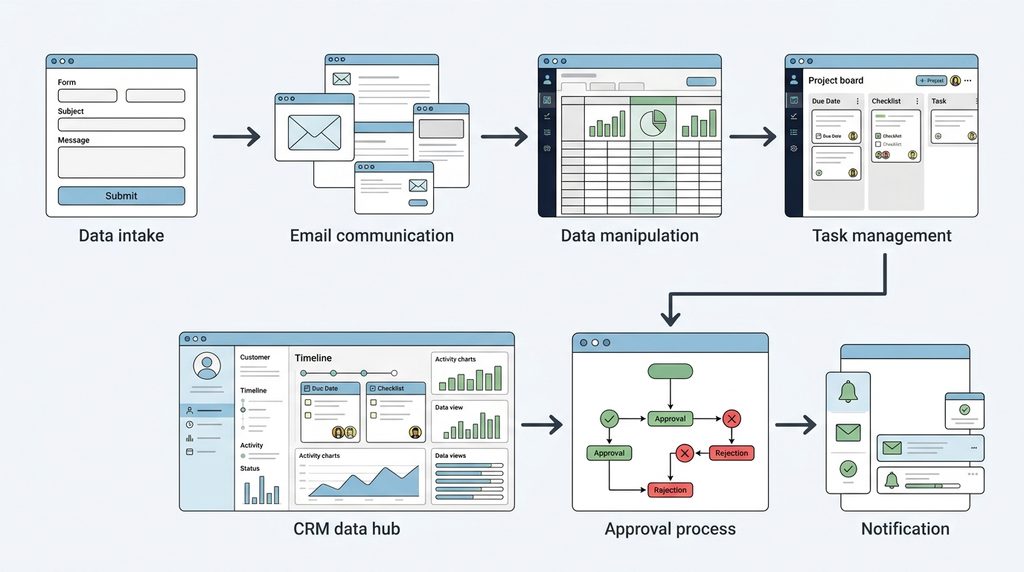
Imagine receiving a form submission and automatically:
- Reading the information
- Classifying the request
- Updating a spreadsheet
- Sending an email
- Creating a task
- Notifying the right person
That is where automation platforms become useful.
12. Zapier — Best AI Automation Tool for Beginners
Zapier connects different applications so that actions can happen automatically.
For example:
New form submission → create CRM record → send notification → create task
You don’t necessarily need to be a developer to build these workflows.
Zapier is particularly attractive if you want simple automation without building an entire software solution.
Best for
- Simple workflows
- Connecting popular apps
- Notifications
- Lead management
- Administrative tasks
- Repetitive office processes
13. Make — Best for More Advanced Automation
Make is another automation platform, but it gives you more flexibility when workflows become complicated.
You can build branching processes, data transformations, multiple steps, and more detailed logic.
The tradeoff is that it can take longer to learn.
Zapier vs Make
| Zapier | Make | |
|---|---|---|
| Ease of use | Easier | More technical |
| Simple workflows | Excellent | Excellent |
| Complex workflows | Good | Better |
| Visual control | Good | Excellent |
| Beginner friendly | Yes | Moderate |
| Advanced automation | Good | Excellent |
If you’re completely new to automation, I’d start with Zapier.
If you enjoy building complex workflows and want more control, Make is worth learning.
14. Grammarly — Best AI Tool for Everyday Writing
Not everyone needs an AI chatbot to write an entire document.
Sometimes you already know what you want to say. You just need someone—or something—to make it clearer.
That’s where Grammarly is useful.
It can help identify grammar problems, awkward wording, clarity issues, and tone problems.
Best uses
- Emails
- Reports
- Business communication
- Blog posts
- Editing
- Grammar checking
Best for
Anyone who writes a lot but doesn’t want every sentence rewritten by an AI chatbot.
15. Cursor — Best AI Tool for Developers
Developers have an entirely different set of AI needs.
Cursor is an AI-powered code editor that can help developers understand existing code, generate code, modify files, and work through development tasks.
It is particularly interesting for developers who already understand software development but want to reduce the amount of repetitive coding.
Best uses
- Code generation
- Refactoring
- Debugging
- Understanding codebases
- Creating features
- Working across multiple files
Best for
Developers who want AI inside their coding environment rather than a separate chatbot window.
If you’re interested in comparing AI coding tools specifically, see our guide:
Cursor vs Claude Code vs Windsurf vs Replit: Which AI Coding Tool Is Actually Worth It in 2026?
Which AI Tools Should You Actually Use?
This is the part many “best AI tools” lists get wrong.
You don’t need to install everything.
A better approach is to build a small AI toolkit around the work you actually do.
| Your Main Problem | Start With |
|---|---|
| Writing emails and documents | ChatGPT or Claude |
| Research | Perplexity |
| Working with your own documents | NotebookLM |
| Microsoft 365 work | Copilot |
| Google Workspace | Gemini |
| Meetings | Fireflies or Otter |
| Presentations | Canva or Gamma |
| Simple automation | Zapier |
| Advanced automation | Make |
| Editing | Grammarly |
| Coding | Cursor |
If you are starting from zero, I’d pick one general AI assistant first.
Then add a specialist only when you encounter a real problem that the first tool doesn’t solve well.
If you’re interested in AI app builders specifically, see our Lovable Review 2026.
You Don’t Need 15 AI Subscriptions
This is worth repeating.
Buying every AI tool you see on social media is not an AI strategy.
It’s just another monthly expense.
A much better setup might look like this:
Basic setup
One general AI assistant
Use it for writing, brainstorming, analysis, planning, and everyday questions.
Research-heavy setup
General AI + research tool
Use the general AI for analysis and a research-focused tool for finding current information.
Meeting-heavy setup
General AI + meeting assistant
Let the meeting tool handle transcription and summaries while the general AI handles follow-up work.
Automation-heavy setup
General AI + Zapier or Make
Use AI for decisions and content, then automation tools to move information between applications.
Developer setup
General AI + AI coding tool
Use the general assistant for planning and problem solving, and the coding tool directly inside your development environment.
This is usually more practical than paying for ten overlapping services.
The AI Workflow I Would Start With
If I were setting up an AI workflow from scratch, I would keep it simple.
Step 1: Choose one general AI assistant
Start with ChatGPT, Claude, Gemini, or Copilot depending on the tools you already use.
Step 2: Identify one repetitive task
Don’t try to automate your entire job.
Find something you do repeatedly.
For example:
- Writing weekly reports
- Summarizing meetings
- Searching documents
- Creating presentations
- Cleaning spreadsheets
- Sending repetitive emails
- Moving information between systems
Step 3: Use AI for the first draft
Let AI produce the first version instead of the final version.
You remain responsible for checking the result.
Step 4: Add automation
Once you know the process works, automate the repetitive parts with Zapier, Make, or your company’s approved automation tools.
Step 5: Measure the time saved
If something took 60 minutes and now takes 20, you’ve saved 40 minutes.
That’s the number that matters.
Not how many AI tools you have.
What I Wouldn’t Do With AI Tools at Work
There are a few mistakes I would avoid.
Don’t buy tools just because they’re popular
A tool with a million users isn’t automatically the right tool for your job.
Don’t trust AI output blindly
AI can produce confident but incorrect information.
Check important facts.
Don’t paste confidential company information into personal AI accounts
This is especially important with customer information, credentials, internal reports, financial data, source code, contracts, and confidential business documents.
Always follow your company’s AI and information-security policies.
Don’t automate a bad process
If your existing workflow is confusing, automating it can simply make the confusion happen faster.
Fix the process first.
Don’t use five tools when one will do
More software doesn’t automatically mean more productivity.
Frequently Asked Questions About AI Tools for Work
What is the best AI tool for work in 2026?
There isn’t one tool that is best for everyone.
For general-purpose work, ChatGPT and Claude are strong starting points. People heavily invested in Google Workspace may prefer Gemini, while Microsoft 365 users may get more value from Copilot.
The best AI tool depends on the applications you already use and the type of work you do.
What are the best free AI tools for work?
Many popular AI tools offer free plans or free access with limitations.
ChatGPT, Claude, Gemini, Perplexity, NotebookLM, Canva, and several other tools can be used without immediately paying for a subscription.
Free limits change frequently, so check the current plan before choosing a tool based on its free allowance.
What is the best AI productivity tool?
For general productivity, a general-purpose assistant such as ChatGPT or Claude is a good starting point.
For specific workflows, a specialist can be better. For example, Perplexity is useful for research, Fireflies for meetings, Zapier for automation, and Cursor for coding.
Which AI tool is best for writing?
ChatGPT and Claude are strong general-purpose writing tools.
Grammarly is particularly useful when you already have the content and want help improving grammar, clarity, and tone.
Which AI tool is best for research?
Perplexity is a strong option for web research because it is designed around searching for information and presenting sources.
NotebookLM is better when you want to research a set of documents that you provide yourself.
Which AI tool is best for meetings?
Fireflies.ai and Otter.ai are useful options for meeting transcription and summaries.
Your choice should depend on the meeting platforms you use and the integrations your organization allows.
Can AI tools actually save time at work?
Yes, but only when they are applied to the right tasks.
The biggest gains usually come from repetitive work such as drafting, summarizing, searching, formatting, transcription, analysis, and moving information between systems.
AI doesn’t automatically make every task faster.
Are AI tools safe to use with company information?
It depends on the specific tool, account type, company policies, and data involved.
Never assume that because an AI tool is popular, it is automatically approved for confidential company information.
For workplace use, check your organization’s security, privacy, and AI-use policies before uploading internal data.
Which AI Tool Should You Try First?
Don’t start by downloading 15 AI tools.
Start with the biggest time-consuming task in your work.
If you write constantly, try an AI writing assistant.
If you research constantly, try an AI research tool.
If meetings consume your calendar, try a meeting assistant.
If you repeatedly move information between applications, look at automation.
If you code every day, try an AI coding tool.
The best AI productivity tool is not necessarily the one with the longest feature list.
It’s the one that removes a task you currently hate doing.
And once you’ve found one tool that genuinely saves you time, then add another.
That’s a much better way to build an AI toolkit for work in 2026.